Email remains one of the most common ways scammers steal money, passwords, and personal information. Every day, cybercriminals send millions of fake emails pretending to be banks, courier companies, government departments, Microsoft, Google, Amazon, or even your own employer.
The good news? Most scam emails leave behind clues if you know what to look for.
In this guide, we’ll show you the easiest ways to identify an email scam so you are protected from phishing emails before you click a dangerous link or open a malicious attachment.
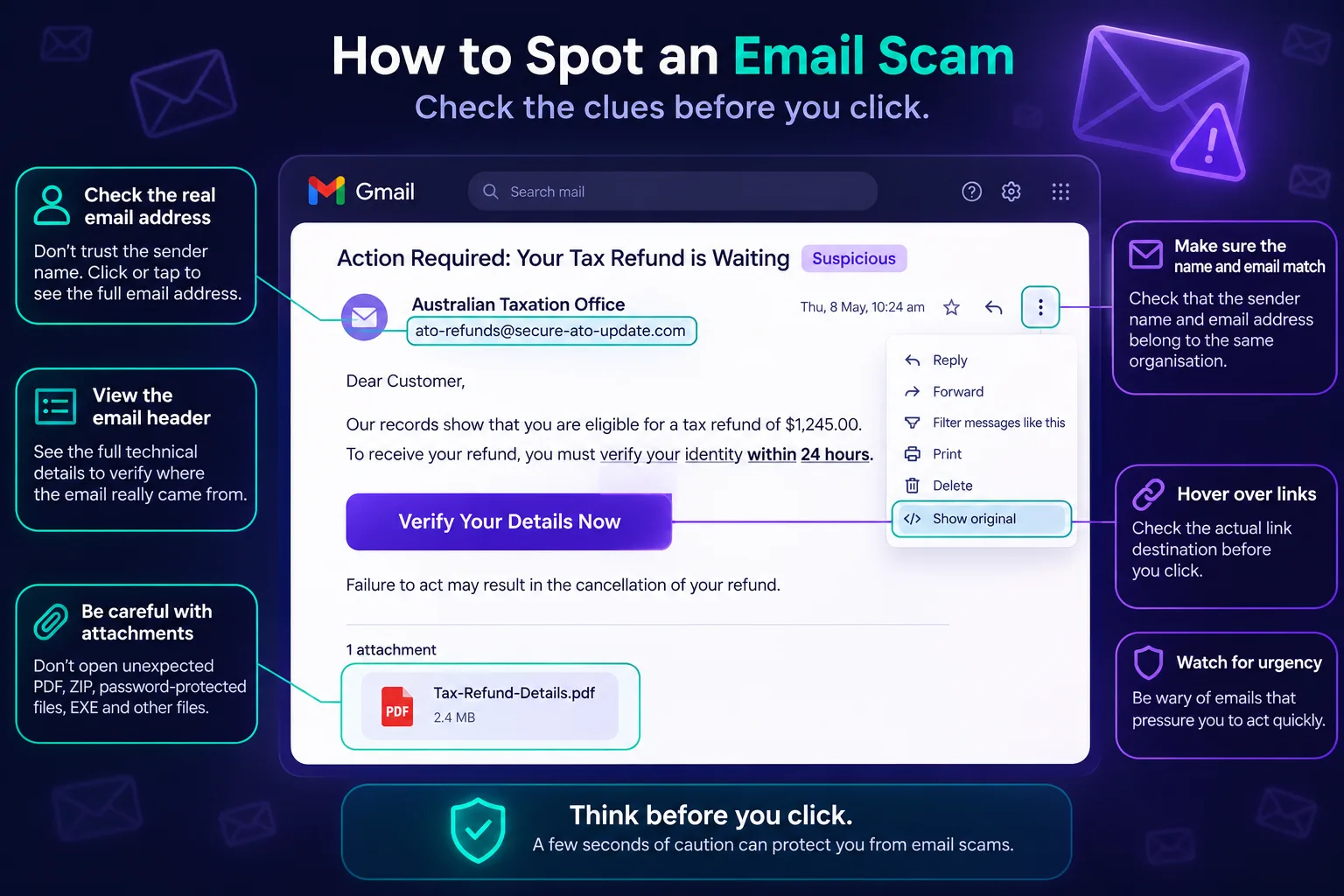
1. Don’t Trust the Sender Name – Check the Actual Email Address
One of the biggest mistakes people make is trusting the display name.
An email might appear to come from:
- Australian Taxation Office
- Crime Branch or Cyber Cell
- Microsoft Support
- Amazon Australia
- Department of Home Affairs
…but the actual email address could be something completely different.
For example:
❌ Display Name: Australian Taxation Office
Actual email:
notifications-ato@gmail.comor
ato-security@outlook.comor even
support@ato-refunds.netThese are not official government email addresses.
How to check the real sender
On most email apps:
- Click or tap on the sender’s name.
- Expand the sender details.
- View the full email address.
Always ask yourself:
- Does the email address match the organisation?
- Is the domain correct?
- Are there extra letters, numbers or strange words?
For example:
✅ person@homeaffairs.gov.au will be the correct email domain for Australian department of home affairs for any immigration or visa related email but below two will not:
❌ homeaffairs-au.com
❌ gov-au-services.net
Scammers often register domains that look almost identical to legitimate organisations. Even changing one letter can fool people. This technique is known as email spoofing or impersonation.
2. Check the Email Header (Advanced but Very Useful)
If something feels suspicious, viewing the email header can reveal much more information than what’s shown on the screen.
The email header contains technical information including:
- The real sending server
- Return-Path
- Reply-To address
- Authentication results
- Routing information
Security professionals often inspect headers to identify phishing emails because they reveal details hidden from normal view.
How to view email headers
Gmail
- Open the email.
- Click the three dots beside Reply.
- Select Show Original.
You’ll see:
- From
- Return-Path
- SPF
- DKIM
- DMARC
- Received servers
Outlook
- Open the email.
- File → Properties (desktop)
or
- Three dots → View → View message details (web version).
Apple Mail
- View → Message → All Headers.
Don’t worry if the technical details seem confusing. Even simply checking whether the sender’s domain matches the organisation can help identify many scams.
3. Make Sure the Sender Name Matches the Email Address
This is different from simply checking the email address.
Sometimes scammers write:
From: ICICI Prudential Insurance
but the email actually comes from:
offers@randommail.ruor
security-team@hotmail.comThe sender name is just text—it can be changed to almost anything.
Always verify that the visible name and the actual email address belong to the same organisation. Gmail itself recommends checking that the sender name and email address match when evaluating suspicious messages.
4. Be Extra Careful with Government Emails
Government departments are a favourite target for scammers because people tend to trust official-looking communications.
Scammers commonly impersonate:
- Tax departments
- Immigration offices
- Police/ Cybercrime
- Courts
- Passport offices
- Road transport authorities
These emails often claim:
- Your refund is waiting
- Your visa has been cancelled
- Your account is suspended
- You owe tax
- Legal action will begin today
- You have been caught doing something illegal
Their goal is to make you panic and act without thinking.
If an email claims to be from a government agency:
- Check the sender’s email domain carefully.
- Visit the agency’s official website yourself instead of clicking links in the email.
- Contact the organisation using publicly listed contact details if you’re unsure.
5. Never Open Unexpected Attachments
Attachments are one of the most common ways malware infects computers.
Even if the email looks genuine, stop and ask yourself:
Was I expecting this file?
If the answer is no, don’t open it until you’ve verified the sender.
Be especially cautious with:
- PDF files
- ZIP archives
- Password-protected ZIP files
- Password-protected PDF files
- Microsoft Word documents (.doc, .docx)
- Excel spreadsheets (.xls, .xlsx)
- Executable files (.exe)
- JavaScript files (.js)
- Screen saver files (.scr)
Scammers often claim the file is:
- An unpaid invoice
- A courier delivery notice
- A tax refund
- A salary slip
- A legal notice
- An employment offer
- An account suspension notice
Some PDFs don’t contain malware themselves but instead trick you into clicking malicious links inside the document. Password-protected ZIP or PDF files can also bypass some email security scanners because their contents are encrypted.
6. Hover Over Links Before Clicking
On a computer, place your mouse over a link without clicking.
Look at where it actually goes.
Example:
Visible text:
www.amazon.comActual destination:
amazon-login-security.xyzThese are completely different websites.
If the destination doesn’t exactly match the organisation’s official domain, don’t click it.
7. Watch Out for Urgency and Threats
Scam emails often try to make you panic.
Common phrases include:
- Your account will be closed today.
- Immediate action required.
- Your payment failed.
- Legal action will begin.
- Your parcel will be destroyed.
- Verify your identity now.
- Click within 24 hours.
Legitimate organisations rarely pressure customers into making instant decisions via email. Urgent language is a classic phishing tactic.
8. Good Grammar Doesn’t Always Mean It’s Safe
Years ago, phishing emails were full of spelling mistakes.
Today, many scammers use AI tools to generate convincing, professional-looking emails with perfect grammar.
That means you should focus on:
- The sender’s email address
- The links
- The attachments
- The request being made
Rather than relying on spelling mistakes alone.
9. When in Doubt, Verify Independently
If you receive an email from your bank, employer, courier company or a government department:
Don’t use the phone number or links provided in the email.
Instead:
- Visit the organisation’s official website.
- Type the web address manually into your browser.
- Log in through the official website or app.
- Call the organisation using a publicly listed phone number.
If the email was genuine, you’ll usually find the same notification in your account or receive confirmation through official channels.
Stay One Step Ahead of Email Scammers
Modern phishing emails can look almost identical to legitimate messages. Taking just a minute to inspect the sender, check the email header, verify the domain, and avoid unexpected attachments can save you from identity theft, financial loss, or malware infections.
Remember these four golden rules:
- Always verify the sender’s full email address, not just the display name.
- Inspect the email header if something feels suspicious.
- Never open unexpected attachments, especially ZIP, password-protected files, PDFs, or executable files.
- When in doubt, visit the organisation’s official website instead of clicking links in the email.
A few extra seconds of caution can prevent a costly scam.
SPONSORED
Frequently Asked Questions about Email Scams
How can I tell if an email is fake?
Start by checking the sender’s full email address rather than just the display name. Look for spelling mistakes in the domain name, unexpected attachments, suspicious links, urgent requests, or messages asking for passwords, payment, or personal information. If you’re unsure, contact the organisation directly using details from its official website.
Is it safe to open an email?
Yes. Simply opening an email is generally safe in modern email services such as Gmail and Outlook.
The biggest risks come from:
- Clicking links
- Downloading attachments
- Opening malicious files
- Enabling macros in Office documents
- Entering your login details on fake websites
If an email seems suspicious, don’t interact with it.
Can opening a PDF attachment infect my computer?
Usually, a normal PDF is safe, but malicious PDFs can exploit software vulnerabilities or contain links to phishing websites. Password-protected PDF files are particularly suspicious because email security scanners cannot easily inspect their contents.
If you weren’t expecting the attachment, verify it with the sender before opening it.
Are ZIP files dangerous?
ZIP files themselves aren’t harmful, but they often contain malware.
Be especially cautious if the ZIP file:
- Is password protected
- Contains executable (.exe) files
- Contains JavaScript (.js) files
- Contains shortcut (.lnk) files
- Was sent unexpectedly
Many malware campaigns use ZIP files to bypass email filters.
Can scammers fake the sender’s email address?
Yes. This is known as email spoofing.
Scammers can make an email appear as though it came from a trusted organisation. That’s why it’s important to inspect the full sender address and, if needed, check the email headers to verify where the message originated.
How do I view an email’s full header?
Most email providers let you inspect the message headers.
For Gmail:
- Open the email.
- Click the three-dot menu.
- Select Show Original.
In Outlook and Apple Mail, similar options are available under message details or properties. The header includes technical information such as the sending server, authentication results, and routing details that can help identify suspicious emails.
Why do scammers pretend to be government agencies?
Government departments are trusted by most people, making them an effective disguise for phishing attacks.
Scammers often impersonate tax offices, immigration departments, police, courts, or transport authorities to create urgency. They may claim you’re owed a refund, have unpaid fines, or need to verify your identity.
Always visit the agency’s official website instead of clicking links in the email.
What should I do if I accidentally clicked a phishing link?
Act quickly.
- Disconnect from the website immediately.
- Do not enter any passwords or personal information.
- Change your password if you entered it.
- Enable two-factor authentication if you haven’t already.
- Run a malware scan on your device.
- Monitor your bank accounts and online accounts for suspicious activity.
- Report the phishing email to your email provider or the impersonated organisation.
The sooner you act, the lower the risk of further damage.
Can AI-generated emails be phishing scams?
Yes. Modern scammers increasingly use AI to create convincing emails with excellent grammar, professional formatting, and personalised content.
Don’t judge an email by how well it’s written. Instead, verify the sender’s email address, inspect links before clicking, and be cautious with unexpected attachments or requests for sensitive information.
How can I protect myself from email scams?
The best protection is a combination of awareness and good security habits:
- Verify the sender’s full email address.
- Never trust the display name alone.
- Hover over links before clicking.
- Avoid unexpected attachments.
- Use strong, unique passwords and enable two-factor authentication.
- Keep your operating system, browser, and antivirus software up to date.
- When in doubt, contact the organisation through its official website or phone number.
Can I scan a suspicious email link before opening it?
Yes. If an email contains a link that you’re unsure about, you can copy the URL without opening it and scan it using a trusted URL safety checker, such as the free URL Checker on Phishbowl, to detect phishing, malware, and scam websites before you click.