Is your phone secretly listening to you or tracking everything you do?
The answer is not as simple as yes or no.
Your phone stores personal messages, banking apps, photos, passwords, and location history — which makes privacy settings more important than most people realise. Many iPhone and Android devices come with default settings enabled that collect behavioural data, allow unnecessary app permissions, or increase tracking. Reviewing these settings regularly can help reduce privacy risks and improve your digital safety.
The truth is that smartphones are not secretly recording every conversation. However, your phone does collect more data than most people realize.
⚠️ Most phones have at least 3–5 settings enabled that track your behavior without you realizing it.
Modern smartphones track things like:
- location activity
- advertising identifiers
- app usage patterns
- microphone and camera permissions
The good news is that you can reduce phone tracking and improve your privacy in just a few minutes by changing a few settings.
This guide explains the most important iPhone and Android privacy settings you should review today.
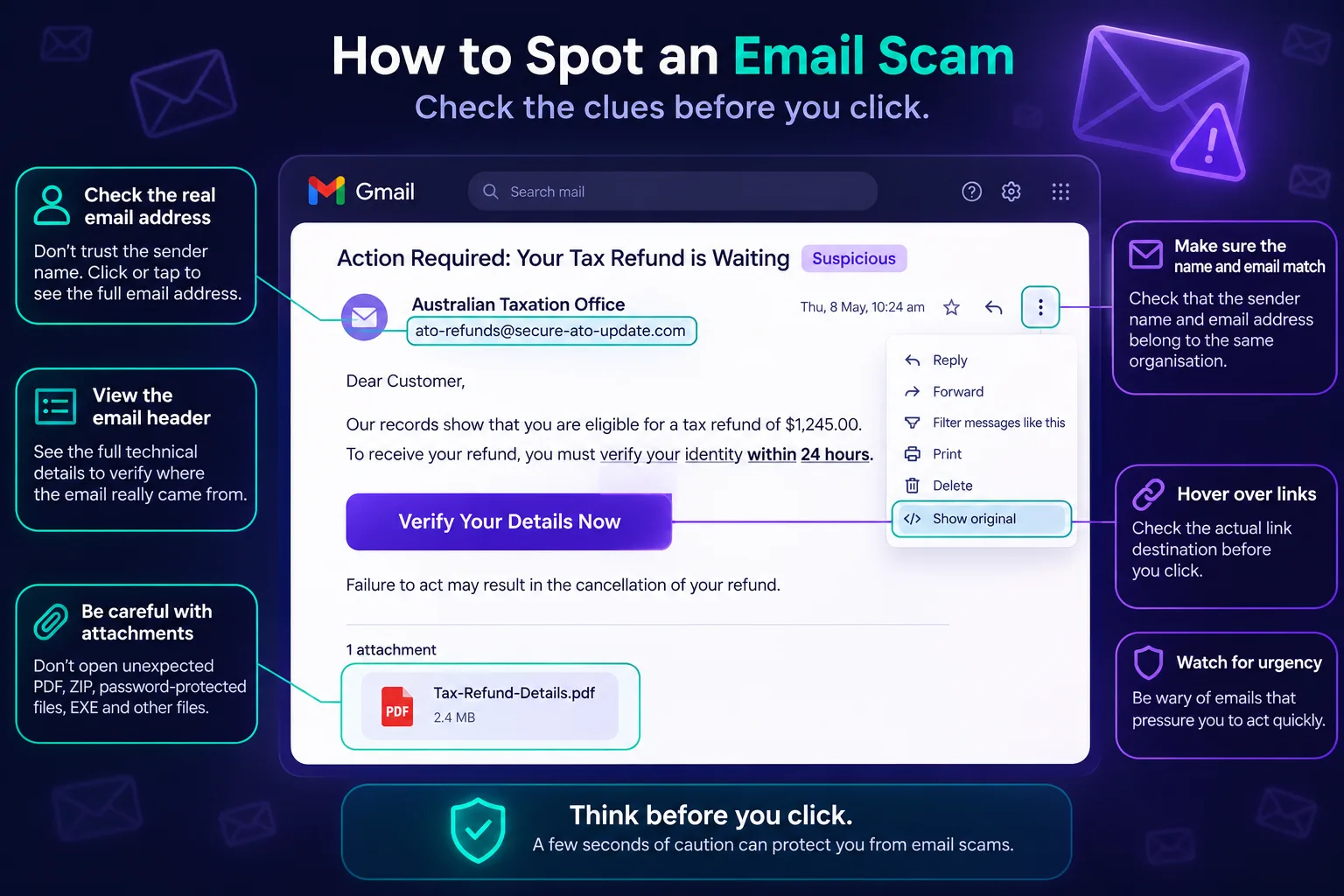
Before we move on, If you receive suspicious links or messages, you can also use our free tools to check if a link is safe or a message is safe before clicking.
🔒 Turn OFF These Settings Right Now (Quick Checklist)
If you want to stop your phone from tracking you as much, start with these settings:
- Turn off voice assistant trigger listening
- Disable Significant Locations on iPhone
- Turn off app tracking requests
- Delete or reset your advertising ID
- Review microphone and camera permissions
- Limit photo library access
- Avoid third-party keyboards for sensitive information
These changes can significantly reduce data collection and targeted advertising.
1. Voice Assistants Are Always Listening for Trigger Words
Features like Siri and Google Assistant work by keeping your phone in a low-power listening mode.
Your device continuously listens for trigger phrases like:
- “Hey Siri”
- “OK Google”
Your phone is not recording full conversations, but the microphone is always monitoring audio locally so it can detect these commands.
How to disable it
iPhone
- Settings
- Siri & Search
- Turn off “Listen for Hey Siri”
Android
- Open Google Assistant settings
- Tap Voice Match
- Turn off “Hey Google”
Disabling this can slightly improve both privacy and battery life.
2. Your Phone Tracks Places You Visit Frequently
Your phone may automatically store a history of places you visit often.
On iPhone this feature is called Significant Locations and is used for suggestions like:
- traffic alerts
- calendar travel times
- map recommendations
However, many people are uncomfortable with their phone keeping a log of frequent locations.
Turn off Significant Locations (iPhone)
- Settings
- Privacy & Security
- Location Services
- System Services
- Significant Locations → Turn Off
This prevents your phone from saving location history.
3. Apps Can Track You Across Other Apps
Have you ever searched for a product on Amazon and then suddenly seen ads for it on Instagram or Facebook?
This happens because many apps use cross-app tracking to share advertising data.
Disable app tracking (iPhone)
- Settings
- Privacy & Security
- Tracking
- Turn off “Allow Apps to Request to Track”
This prevents apps from tracking activity across other apps and websites.
4. Your Phone Has an Advertising ID
Both iPhone and Android devices assign a unique advertising identifier.
Advertisers use this ID to build a profile about your:
- interests
- browsing habits
- app usage
This allows them to show targeted ads.
Turn it off
iPhone
- Settings
- Privacy & Security
- Apple Advertising
- Turn Personalized Ads Off
Android
- Settings
- Ads
- Delete Advertising ID
Resetting or deleting this ID reduces long-term ad tracking.
SPONSORED
5. Third-Party Keyboards May Collect Typing Data
Many people install third-party keyboards like:
- Gboard
- Microsoft SwiftKey
These keyboards improve predictions using typing patterns.
However, some keyboards may collect:
- typing behavior
- usage statistics
- anonymized text samples
Safer option
For sensitive information like passwords or banking details:
- Use your phone’s native keyboard
- Avoid enabling Full Access permissions
6. Review Microphone and Camera Permissions
Some apps keep access to your microphone or camera even when they don’t need it.
This can increase privacy risks.
Check permissions regularly
iPhone
Settings → Privacy & Security → Microphone / Camera
Android
Settings → Privacy → Permission Manager
Remove access from apps that don’t require it.
7. Limit Photo Library Access for Apps
Many apps request full access to your entire photo library even if they only need one image.
Instead of giving full access, select “Selected Photos” whenever possible.
This prevents apps from scanning your entire photo collection.
Smartphone Privacy Checklist
Use this checklist to quickly improve your phone privacy settings:
✔ Disable voice assistant trigger listening
✔ Turn off Significant Locations (iPhone)
✔ Disable cross-app tracking
✔ Delete or reset advertising ID
✔ Review microphone permissions
✔ Review camera permissions
✔ Limit photo library access
✔ Avoid unnecessary third-party keyboards
✔ Remove unused apps with excessive permissions
These steps can significantly reduce phone tracking and data collection.
Why phone privacy settings matter
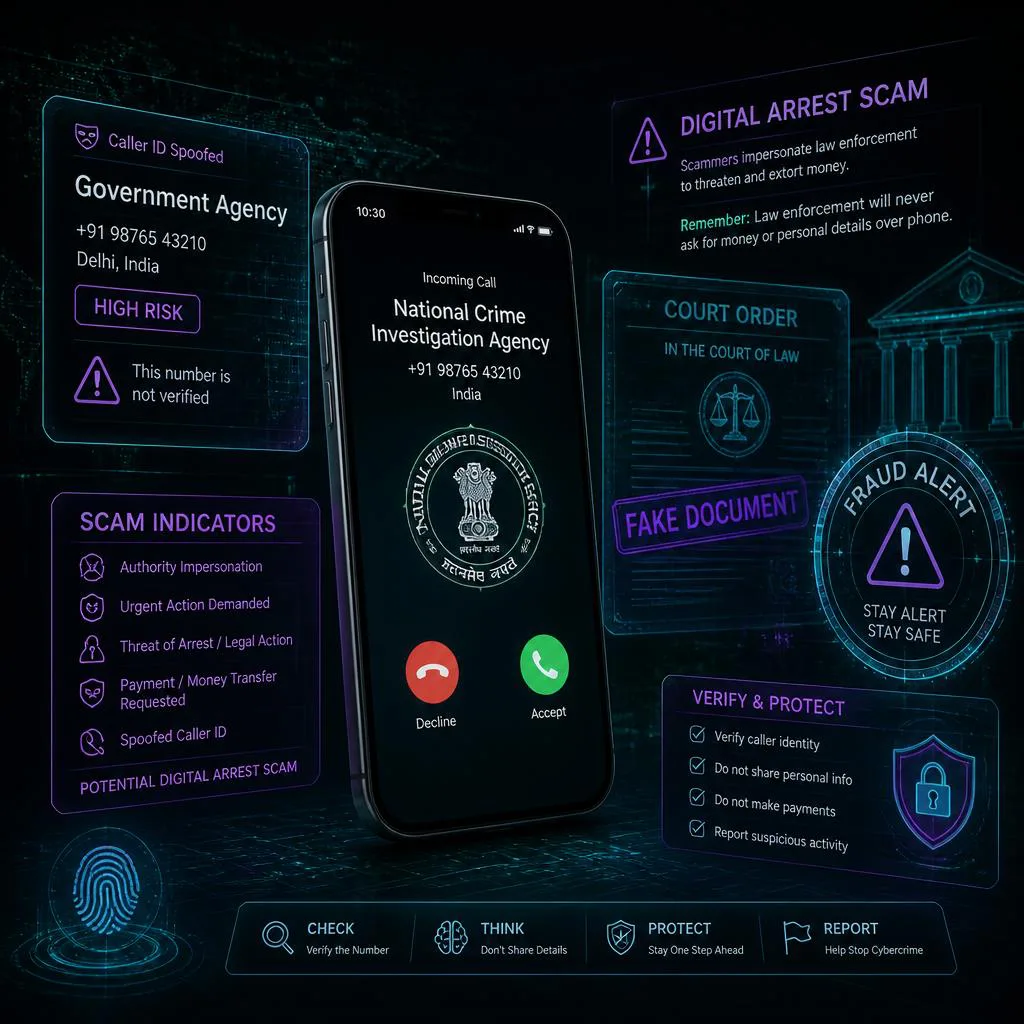
Many scam attempts, phishing attacks, and fraud schemes rely on access to personal data, location history, or behavioural patterns. Limiting unnecessary permissions and tracking can reduce your exposure to targeted scams, impersonation fraud, and privacy risks.
Signs your phone privacy settings may need review
- Apps asking for permissions they do not need
- Frequent location-based ads
- Unexpected microphone or camera access
- Battery draining unusually fast
- Unknown apps running in the background
- Excessive personalised ads
Frequently Asked Questions
Is my phone always listening to me?
Phones are not constantly recording conversations. However, assistants like Siri and Google Assistant remain in a low-power listening mode waiting for trigger phrases such as “Hey Siri” or “Hey Google.”
Why do ads follow me after I search for something?
Apps and advertising networks can share tracking data. Activity on platforms like Amazon may influence ads shown on Instagram or Facebook if tracking permissions are enabled.
Can I completely stop phone tracking?
It’s not possible to eliminate all tracking because some data is needed for system functionality. However, disabling ad tracking, limiting location history, and reviewing permissions can greatly reduce data collection.
How do I know if my phone is being tracked?
Signs of excessive tracking may include unusual battery drain, frequent location-based ads, or apps requesting unnecessary permissions. Reviewing app permissions and disabling tracking settings can help reduce this.
Are third-party keyboards safe?
Keyboards like Gboard and Microsoft SwiftKey are widely used and generally safe. However, they may collect typing patterns to improve predictions. For sensitive information, the built-in keyboard is usually safer.
Final Thoughts
Your smartphone isn’t necessarily spying on you, but it does collect a lot of behavioral data by default.
By adjusting a few iPhone or Android privacy settings, you can:
- reduce tracking
- limit targeted advertising
- protect your personal data
Taking a few minutes to review these settings can make your phone much more private and secure.
Last reviewed & updated: July 2026
Phishbowl Solutions Team